

MUSLIM APP BLOCKER FOR IPHONE
Muslim App Blocker for iPhone: Put Morning and Evening Adhkar Before Social Media
Use this buyer-oriented checklist to evaluate a Muslim app blocker for iPhone, from user-selected apps and Apple Screen Time to a complete adhkar-first flow.
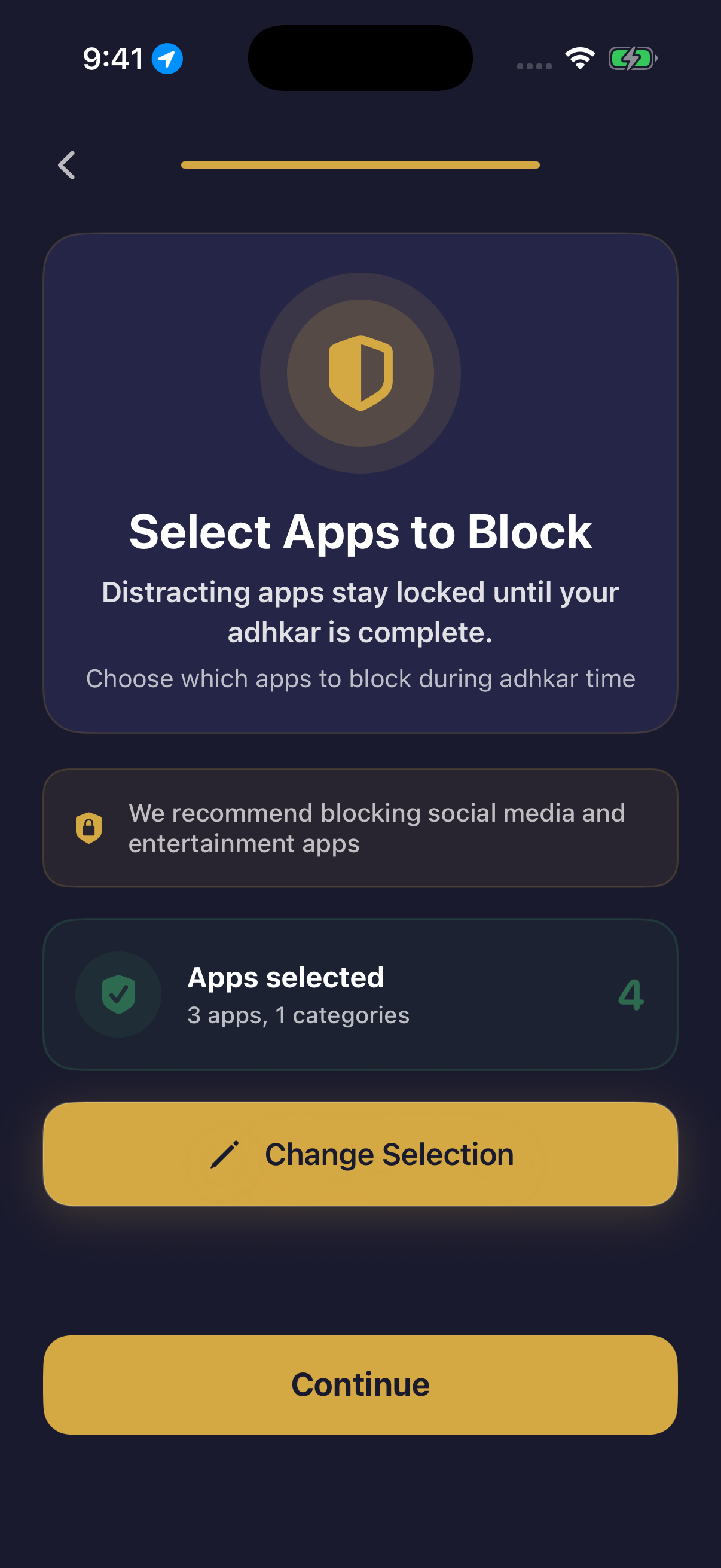
A useful Muslim app blocker should do more than display a timer or hide a feed. It should let you choose the optional apps that interrupt your morning or evening, show a real and understandable boundary on the iPhone, and give you a clear path back to the routine you intended to complete. This checklist helps you test that full sequence before deciding whether an app belongs on your phone.
01 · PRACTICAL GUIDE
Start with the problem you want the app blocker to solve
The phrase “Muslim app blocker” can describe very different products. One may be a general timer with religious branding. Another may connect a specific morning or evening routine to a boundary in front of selected distractions. Before downloading anything, write the behavior you actually want to test: when you reach for one or two optional social apps during your configured routine, you want a visible pause and a clear route back to the reader.
Keep that requirement narrow. The goal is not to make every part of the iPhone unavailable or to let software decide which responsibilities matter. Calls, essential messages, emergency access, health, travel, work, authentication, and other necessary tools may need to remain available. A buyer-oriented comparison should therefore ask which apps can be selected, when the boundary is active, and what happens when the configured flow ends.
This is a product checklist, not a religious ruling. An app can organise access and present source-traceable content, but it cannot judge worship, sincerity, acceptance, or religious standing. Use qualified guidance and trustworthy sources for religious questions; use the steps below only to evaluate the product behavior on an iPhone.
02 · PRACTICAL GUIDE
Check that app selection stays under your control
A practical boundary begins with a list you choose. Look for an actual app-selection screen rather than a vague promise to block distraction. Start with one nonessential social, video, forum, shopping, news, or entertainment app that commonly takes the first tap. A small first test makes it easier to identify a missing permission, an inactive schedule, or an app that should never have been included.
Review the selection as if an ordinary day goes wrong. Could a family member need to reach you? Could you need maps, banking, transport, a password manager, a work tool, or an emergency function? Keep those paths outside the first experiment. The boundary should be understandable and reversible, with no claim that one universal list is correct for every person.
Hisn uses a user-controlled selection. It does not automatically choose every social app, and it does not present the whole iPhone as locked. That distinction matters when comparing products: a precise boundary around chosen apps is easier to test and safer to adjust than a broad promise that hides how access works.
03 · PRACTICAL GUIDE
Test the complete iPhone flow in six steps
Do not judge an app blocker from screenshots alone. Run one complete low-risk test while you have time to change the setup. Each step should produce an observable result before you expand the selected-app list.
- 1Choose one optional app
Select one nonessential social or entertainment app that you can safely leave unavailable during the short test. Keep communication, emergency, travel, health, work, and device-security tools outside the selection.
- 2Configure the relevant routine
Set the morning or evening routine you intend to use and confirm when it is active. A saved app list alone does not prove that the boundary is currently running.
- 3Grant Apple’s Screen Time permission
Read the iPhone permission surface and approve it only if you understand the purpose. A real Screen Time boundary depends on Apple’s system permission rather than an imitation screen inside the app.
- 4Open the selected app
While the configured routine is active, leave Hisn and open the app you selected. Verify that Apple’s Screen Time shield appears and gives you a route back to Hisn instead of merely showing a reminder notification.
- 5Return to the Hisn reader
Inspect the actual reading flow. Hisn keeps Arabic, transliteration, translation, and a tap counter together so you can follow the configured morning or evening routine without using the social app as the next screen.
- 6Complete the configured flow and recheck access
After the routine reaches its product completion state, open the same selected app again and confirm that it is accessible. This verifies the technical shield-and-release sequence; it does not measure religious value or guarantee what you choose next.
04 · PRACTICAL GUIDE
Inspect the adhkar reader, not only the blocking claim
The boundary is only half of the experience. When the shield sends you back, the reader should make the intended next step clear. Check whether Arabic text is legible at your preferred size, whether transliteration and translation can support your reading needs, and whether the tap count is easy to understand without encouraging you to rush merely to clear the shield.
Look for a clear position within the routine and an unmistakable completion state. If closing and reopening the app makes the sequence confusing, the boundary may create more friction than it removes. Test the ordinary reading view before judging optional reports, custom profiles, themes, or other secondary features.
Source transparency matters, but a marketing page should not reproduce, shorten, translate, or decorate religious text to win a download. Review the app’s source information separately and use trusted guidance for questions about wording, repetition, or timing. The buying decision here concerns whether the software presents its flow honestly and gives you the controls you expected.
05 · PRACTICAL GUIDE
Understand what the boundary does—and what it does not do
During an active configured routine, the selected apps can wait behind Apple’s Screen Time shield. Other apps and iPhone functions are not automatically included. After the product records completion, the selected apps become accessible again. That sequence is more precise than saying the phone is locked, social media is eliminated, or the restriction is impossible to bypass.
A visible pause can help you notice the order of two actions, but it cannot guarantee a change in behavior. It is not a treatment for addiction, a sleep intervention, or proof of stronger self-control. It also cannot determine the quality of a religious practice. Reject products that turn those unsupported outcomes into certainty or use guilt to pressure a purchase.
No separate Hisn account is required. Even so, apply the same privacy review you would use for any app: read the current App Store privacy information and the developer’s policy, examine requested permissions, and avoid entering private information into fields that do not need it. Product terms and availability can change, so the live App Store listing remains the current reference.
06 · PRACTICAL GUIDE
Use this five-minute buyer checklist
Compare each candidate with the same observable questions. A product does not pass because its description uses religious vocabulary; it passes only when its real behavior matches the narrow job you defined.
- Can you choose the exact optional apps that wait?
- Can essential communication and emergency tools remain outside the boundary?
- Does a real Apple Screen Time shield appear during the configured routine?
- Does the shield provide a clear path back to the reader?
- Does the reader provide Arabic, transliteration, translation, and understandable tap counting?
- Do selected apps become accessible after the configured completion state?
- Does the product avoid claiming that the whole iPhone is locked or that behavior is guaranteed?
- Can you verify account requirements, permissions, supported languages, compatibility, and current purchase conditions before committing?
07 · PRACTICAL GUIDE
Where Hisn fits this comparison
Hisn is an adhkar and focus app for iPhone and iPad. You choose which distracting apps can wait during a configured morning or evening routine. If you open one while that routine is active, Apple’s Screen Time shield can point you back to Hisn. The reader then keeps Arabic, transliteration, translation, and tap counting in one flow. After completion, those selected apps become accessible again.
The value proposition is specific: put the configured adhkar routine before selected distraction. Hisn does not lock the entire iPhone, select every app for you, act as a religious authority, or promise a guaranteed personal result. No separate Hisn account is required, and you can begin the comparison with one low-risk app before deciding whether to keep the setup.
If that sequence matches the job you wrote at the beginning, review the current App Store listing for availability, supported languages, device compatibility, and any purchase conditions. If it does not, keep the checklist and choose a smaller iPhone boundary or a trusted reading method that better fits your routine.
CLEAR ANSWERS
Questions about the routine
What is a Muslim app blocker for iPhone?
It is a descriptive product category, not a religious ruling. A useful option lets you place a clear routine before selected optional apps. With Hisn, user-selected apps can wait behind Apple’s Screen Time shield during a configured morning or evening routine.
Can I choose which social media apps wait?
Yes. Hisn uses a user-controlled app selection. Start with one nonessential app, keep communication and emergency tools outside the list, and test the complete flow before expanding it.
What happens when I open a selected app?
During an active configured routine, Apple’s Screen Time shield can appear and direct you back to Hisn. You can then use the reader with Arabic, transliteration, translation, and tap counting.
Does Hisn lock the whole iPhone?
No. The boundary applies to apps you select during the configured routine. Other parts of the iPhone are not presented as locked, and the product does not claim an impossible-to-bypass restriction.
Do I need an account, and when are selected apps accessible again?
No separate Hisn account is required. After the configured routine reaches completion, the selected apps become accessible again; you decide whether opening one still matches your intention.
This guide describes Hisn’s current iPhone and iPad focus flow without promising a guaranteed behavioral, medical, or religious outcome. Current App Store availability and device compatibility are shown by Apple.