
IPHONE APP BLOCKING
How to Block Apps at Certain Times on iPhone
Learn practical ways to make selected iPhone apps wait at scheduled times, including a dhikr-first morning or evening routine with Hisn.

A useful app-blocking schedule is not a wall around your whole phone. It is a clear boundary around the few apps that tend to take over a specific part of your day.
01 · PRACTICAL GUIDE
Start with a time window, not a total phone ban
If you want to block apps at certain times on iPhone, begin by naming the moment you are protecting. It might be the first twenty minutes after an alarm, the transition into an evening routine, or a focused work period. A specific window is easier to set up and easier to evaluate than a broad goal such as using your phone less.
Next, identify the apps that usually pull that moment off course. Social feeds, video apps, games, and news can all be distracting, but the right list is personal. You do not have to include calls, messages, maps, music, or every browser simply because they are on the same device. A narrow boundary is often more practical than blocking the entire phone.
Write the rule in one sentence before changing any setting: ‘From this trigger until this routine is complete, these selected apps should wait.’ That sentence gives you three things to configure—the trigger, the app list, and the end condition—and prevents the setup from becoming a collection of unrelated restrictions.
02 · PRACTICAL GUIDE
Choose the iPhone method that matches the job
Apple’s Screen Time settings include options such as Downtime and App Limits. Downtime is useful when you want a broad recurring schedule with only chosen apps available. App Limits are useful when you want to place daily time limits on categories or individual apps. Labels and menu positions can vary with the iOS version, so read the description on your device before confirming a rule.
A routine-linked shield solves a different problem. Instead of making the clock the only finish line, it connects selected apps to a defined action. Hisn uses Apple’s Screen Time technology so that apps you choose can wait during an active morning or evening adhkar routine. The visible boundary and the routine live in the same flow.
Neither approach needs to cover every situation. You can use the built-in Screen Time schedule for a general evening cutoff and a smaller Hisn selection for the morning transition you want to place after adhkar. Keep the rules simple enough that you can explain which one is active and why.
- 1Use Downtime for a broad clock-based window
Choose this when most apps should be unavailable on a recurring schedule and only a short allowed list should remain easy to reach.
- 2Use App Limits for daily usage boundaries
Choose this when the amount of time spent in a particular app or category is the main issue rather than a morning or evening transition.
- 3Use Hisn for a dhikr-first transition
Choose this when selected distractions should wait during an active morning or evening adhkar routine, then become available after completion.
Choose what waits, complete the routine, then return with intention.
03 · PRACTICAL GUIDE
Set up a scheduled dhikr-first boundary in Hisn
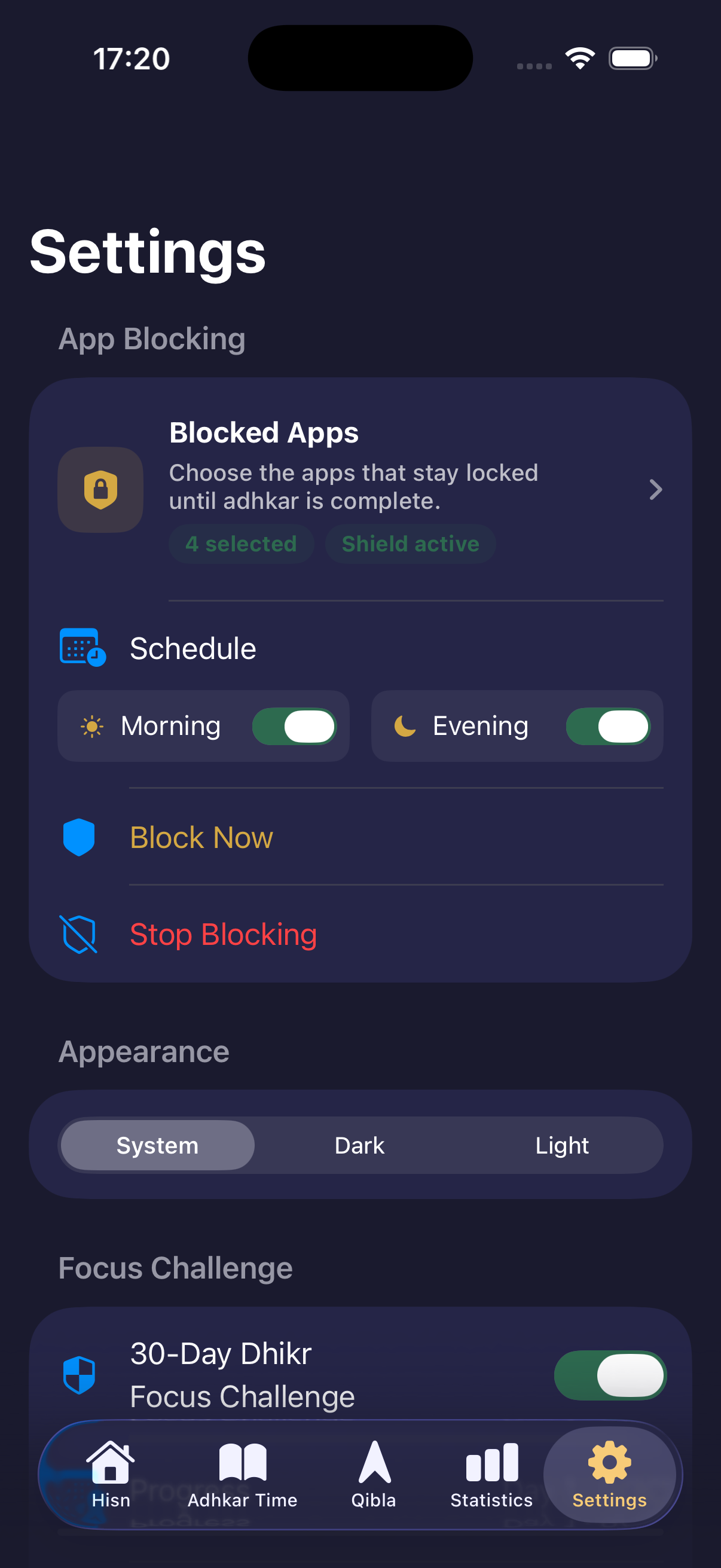
Begin with the app-selection screen and choose the smallest useful group. Hisn asks for Apple’s Screen Time authorization because that system permission is what allows the selected-app shield to appear. The selection remains under your control; Hisn does not need you to submit a list of app names to an account.
Then review the morning and evening settings. Enable only the window you intend to test first. If the morning transition is the problem, keep the evening setting unchanged while you learn whether the morning boundary appears at the expected time. One active experiment produces clearer information than changing both periods together.
When the selected app is opened during the active routine, Apple’s shield appears in front of it and points back to Hisn. Complete the relevant routine, then return to the phone choice. The product is creating a deliberate pause around selected apps, not claiming an impossible-to-bypass lock across every circumstance or system screen.
- Select only the apps connected to the unwanted scroll.
- Authorize Screen Time when iOS asks for permission.
- Turn on one morning or evening window first.
- Open a selected app during that window to confirm the shield appears.
- Complete the active routine and confirm the selected app becomes available again.
04 · PRACTICAL GUIDE
Keep essential phone tasks outside the boundary
A schedule that interrupts something essential will be difficult to keep. Before selecting an app, ask whether you may genuinely need it during the protected window. Transport, authentication, health, work, school, calls, and direct messages may deserve different treatment from entertainment or feed-based apps.
Do not copy another person’s block list. Two people can use the same social app for completely different purposes, and a browser can be either a work tool or the beginning of an unplanned scroll. Choose from your own repeated transitions rather than from a generic category label.
If one app serves both useful and distracting purposes, leave it outside the first test or protect a shorter window. The goal is to make the intended action easier to recognize, not to create a rule so broad that you immediately dismantle it.
05 · PRACTICAL GUIDE
Test the schedule before depending on it
Run a short test while you have time to inspect the result. Confirm that Screen Time permission is active, the intended app is selected, and the morning or evening switch is enabled. Then open that selected app during the active window. Seeing the shield yourself is more useful than assuming a setting saved correctly.
If the shield does not appear, change one thing at a time. Recheck the app selection first, then the schedule, then the iOS Screen Time authorization. Avoid deleting and rebuilding every setting at once because that makes the cause harder to find. If a system permission was changed in Settings, return to Hisn and verify the current state again.
Also test the ending: complete the active routine and confirm that the selected apps are available. A trustworthy boundary needs a clear entrance and a clear exit. If either side is confusing, simplify the configuration before expanding it.
06 · PRACTICAL GUIDE
Review one week with one question
After seven days, do not judge the schedule by a perfect streak. Ask whether the boundary appeared at the right moment and whether it made the next action clear. That is evidence about the setup, not a score for discipline, productivity, or religious practice.
If the timing was wrong, adjust the window and leave the app list unchanged. If essential tools were caught, reduce the list and leave the timing unchanged. If the shield was clear but the routine felt hard to find, improve that path without changing the schedule. One-variable adjustments make the next week understandable.
Hisn is a fit when your goal is specific: selected apps should wait while you complete a morning or evening adhkar routine. If you only need a generic bedtime cutoff or daily minutes limit, Apple’s built-in Screen Time options may already match the job. Choose the smallest tool that supports the boundary you actually want.
CLEAR ANSWERS
Questions about the routine
Can I block only certain apps at certain times on iPhone?
Yes. Apple provides Screen Time controls, and Hisn lets you choose apps that can wait during an active morning or evening adhkar routine. The exact method should match the kind of boundary you want.
Does Hisn block my whole iPhone?
No. Hisn applies Apple’s Screen Time shield to the apps or categories you select during the active routine. It does not claim to lock the entire device or create an unbreakable restriction.
Will calls and messages still work?
They can remain available when you do not include the relevant apps in your selection. Review your own essential tasks before confirming the list.
Do I need a Hisn account to choose apps?
No. Hisn does not require an account, and selected-app choices are designed to stay on your device.
This guide describes Hisn’s current iPhone and iPad focus flow without promising a guaranteed behavioral, medical, or religious outcome. Current App Store availability and device compatibility are shown by Apple.