

MORNING SOCIAL MEDIA BLOCK
How to Block Social Media in the Morning on iPhone
Build a practical iPhone morning boundary for selected social media apps, test the real Screen Time shield, and reopen them only after a deliberate routine.
A useful morning block is specific, testable, and easy to reverse. Choose the apps that tend to start an automatic scroll, verify the real iPhone boundary, and decide in advance what should happen before those apps become available again.
01 · PRACTICAL GUIDE
Define a narrow morning rule before choosing a tool
Blocking social media in the morning works best as a precise rule, not a vague ambition to use your phone less. Write down which apps are involved, when the boundary should be active, and what action should make them available again. A rule such as ‘these two apps wait during my morning routine’ is easier to test than ‘I will avoid every distraction.’
Keep essential communication, travel, health, work, and emergency tools outside the first experiment. The goal is not to disable an entire iPhone. It is to add a deliberate pause before a small set of apps that regularly turns a quick check into an unplanned session.
02 · PRACTICAL GUIDE
Choose the apps from behavior, not from reputation
An app does not need to be labeled social media to create the same morning pattern. Short-form video, news, forums, shopping, games, and entertainment can all become the first automatic tap. Look at the transition you want to change: which icon do you open before deciding what the morning is for?
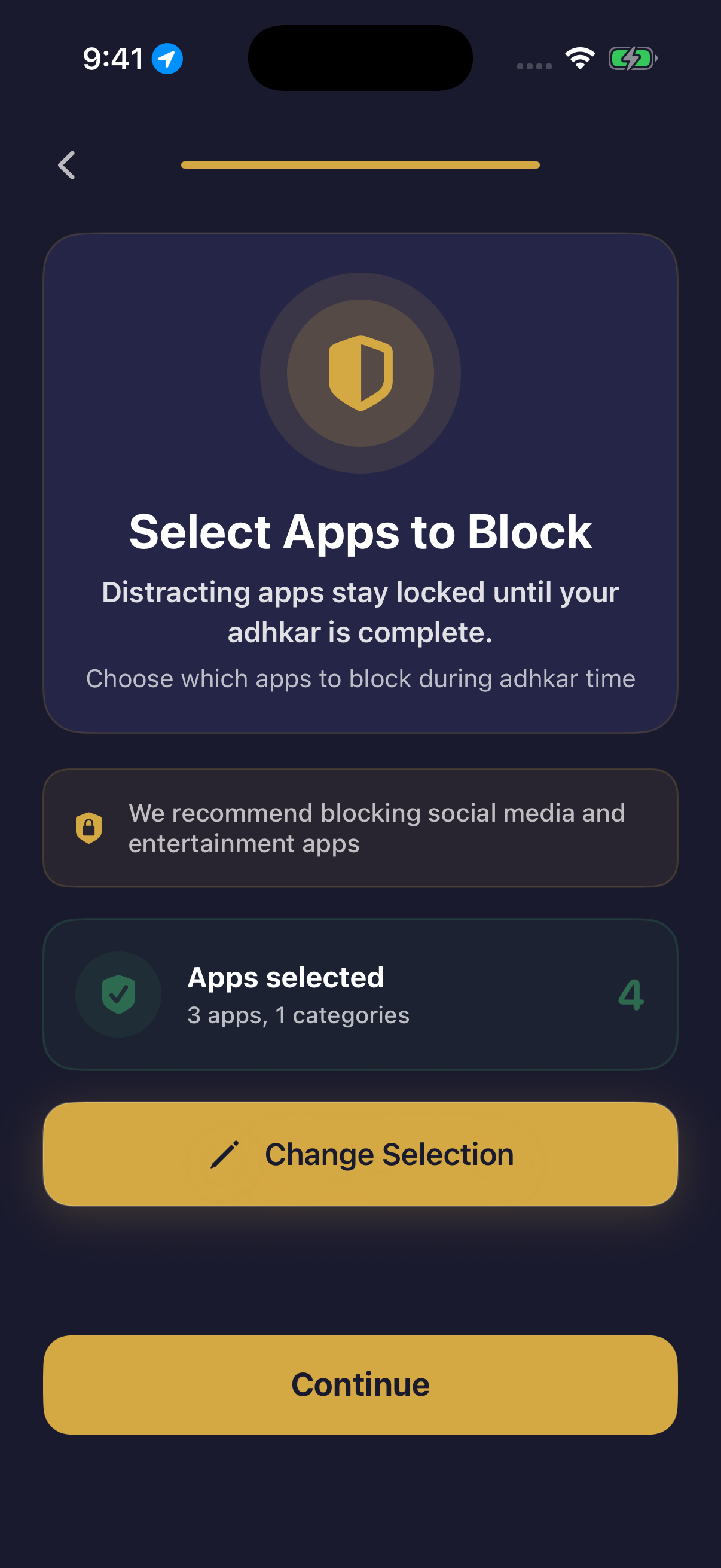
Start with one or two nonessential apps. A small selection makes troubleshooting easier and reduces the chance that the boundary interferes with something important. Hisn uses Apple’s app-selection interface, so the choice remains yours rather than being imposed by a universal block list.
03 · PRACTICAL GUIDE
Understand what an iPhone Screen Time boundary can do
A reminder and an app shield solve different problems. A reminder asks for attention while the distracting app may still open normally. A Screen Time shield places a visible interruption in front of an app you selected. That added step can make the intended sequence clear at the moment of action.
With Hisn, selected apps can wait while an active morning or evening adhkar routine is incomplete. Apple’s Screen Time technology supplies the system boundary, and you grant the required permission. This does not lock every app, make the phone unusable, or promise an unbreakable restriction. It applies to the apps you chose within the configured routine.
04 · PRACTICAL GUIDE
Test the real shield before depending on it
Do not assume the setup works because a selection screen looks correct. Activate the morning routine, leave Hisn, and try to open one selected app. Confirm that the Apple Screen Time shield appears. Then complete the relevant in-app routine and check that the selected app becomes available again.
This short test checks the full handoff: permission, app selection, active schedule, shield, completion, and release. If any step behaves differently, review the iPhone permission and routine settings before adding more apps. A verified one-app setup is more useful than a long list that has never been tested.
05 · PRACTICAL GUIDE
Follow one repeatable morning sequence
The boundary becomes easier to understand when every step has one job. You do not need to add a complex productivity system around it. Use the same short sequence for several mornings before judging whether the rule is practical.
- 1Activate the morning routine
Use the configured morning window and confirm that the routine is active before testing a selected app.
- 2Open one selected social app
Treat the shield as a cue to return to the intended sequence, not as evidence that the whole phone is locked.
- 3Complete the guided routine
Use Hisn’s reader, progress indicator, and tap-counting controls to move through the guided routine at a steady pace.
- 4Reconsider the original tap
When the selected app becomes available, decide whether opening it still serves the morning you planned.
06 · PRACTICAL GUIDE
Make access after completion a deliberate choice
The useful moment is not only the shield. It is the second decision after the routine is complete. The selected app can become available again without requiring you to open it. That distinction keeps the boundary proportional: Hisn changes the order of actions, while the final choice remains yours.
If you still want the app, open it with a purpose such as replying to one message or checking one account. If the reason has disappeared, leave it closed. The routine does not guarantee a particular behavior or outcome; it simply creates a clearer place to decide.
07 · PRACTICAL GUIDE
Keep the routine and app choices private
App selection and religious routine progress can be sensitive. Before adopting any blocker, ask whether it requires a new account, builds a public profile, stores the names of selected apps on a remote dashboard, or asks for information unrelated to the boundary itself.
Hisn does not require a separate Hisn account. Routine progress, selected-app choices, and prayer settings are designed to remain on the device. That is a defined product boundary, not a claim that every technical service on an iPhone is identical or that no system-level data exists anywhere.
08 · PRACTICAL GUIDE
Review the rule after a week without turning it into a score
After several mornings, review whether the boundary activates at the right time, whether the selected apps are truly nonessential, and whether the release point is clear. Remove an app if blocking it creates a practical problem. Add another only when the first selection is stable and the reason is specific.
Avoid treating a streak or completion count as a measure of sincerity, personal worth, or religious outcome. Progress history can answer a narrow operational question—whether the configured routine was completed—but it cannot evaluate the quality or acceptance of worship.
- Did the boundary activate during the intended morning window?
- Did the selected apps match the actual source of the automatic scroll?
- Could essential calls, messages, travel, work, and emergency tools remain available?
- Did completion clearly release the selected apps?
- Was the app choice still useful after several ordinary mornings?
09 · PRACTICAL GUIDE
Where Hisn fits in this morning setup
Hisn fits a specific version of the morning-blocking goal: you want selected distracting apps to wait while you complete a guided morning adhkar routine. The app combines the user-selected Screen Time boundary with a reader, progress, completion, prayer times, and Qibla. Its distinguishing sequence remains ‘Dhikr before distraction,’ not a claim to control the entire phone.
If that sequence matches the rule you wrote at the beginning, inspect the current Hisn listing through the App Store link below. Apple shows current availability, supported interface languages, device compatibility, and any purchase terms. This guide does not change the offer or claim that a store visit is an installation.
CLEAR ANSWERS
Questions about the routine
Can I block only social media apps in the morning on iPhone?
Yes, an app using Apple’s Screen Time controls can apply a boundary to apps you select. With Hisn, the selected apps can wait during an active morning or evening adhkar routine rather than the whole iPhone being locked.
Does Hisn lock the entire iPhone?
No. Hisn applies Apple’s Screen Time shield to user-selected apps within the configured routine. Essential and unselected apps are not described as part of that boundary.
What happens after the morning routine is complete?
The selected apps become available again. You can then decide whether opening one still matches your plan for the morning.
Should I select every distracting app at once?
Start with one or two nonessential apps, test the complete shield-and-release flow, and expand only when the first rule works without blocking something important.
Does Hisn require a separate account?
No separate Hisn account is required. Routine progress, selected-app choices, and prayer settings are designed to remain on the device.
This guide describes Hisn’s current iPhone and iPad focus flow without promising a guaranteed behavioral, medical, or religious outcome. Current App Store availability and device compatibility are shown by Apple.