
CHOOSE YOUR APPS
How to Choose Which Apps to Block on iPhone
Choose a practical, user-controlled list of iPhone apps to pause during a focus routine without blocking tools you genuinely need.

The best first block list is usually short. It targets the apps that start an automatic loop while leaving essential phone tasks easy to reach.
01 · PRACTICAL GUIDE
Find the app that starts the loop
Do not begin by ranking every app on your iPhone as good or bad. Begin with a real transition. Think about the first phone moment in the morning or the point when an evening check becomes a longer scroll. Which app do you open first, and which app usually follows it?
The first app matters because it is the entrance to the loop. A news app may lead to a browser; a message notification may lead to a social feed; a short video may lead to another video. Blocking only the app where you spend the most minutes can miss the earlier choice that starts the sequence.
For three ordinary days, notice the first two apps in that transition. You do not need to record personal content, searches, religious activity, or message details. A simple category such as ‘video,’ ‘social,’ or ‘news’ is enough to reveal the pattern without creating a sensitive diary.
02 · PRACTICAL GUIDE
Build the smallest list that changes the moment
Choose two to four apps for the first test. A short list makes it obvious which boundary you created and reduces the chance of blocking something important. It is also easier to verify: during the active window, open each selected app and confirm the expected shield appears.
Select an entire category only when the category itself matches the behavior. If you use one social app for direct family messages and another mainly for a feed, treating them as a single category may be too broad. Individual selection gives you more control when the apps serve different purposes.
Do not add an app because it appears on a generic productivity list. Add it because it repeatedly interrupts the exact morning or evening transition you are protecting. The purpose of the list is not to make the phone look strict; it is to place one deliberate step before a predictable distraction.
- 1Name the protected transition
Choose one moment, such as after dismissing the morning alarm or before beginning an evening wind-down.
- 2Identify the first two distracting apps
Focus on the apps that begin the loop, not only the app with the largest weekly total.
- 3Select two to four apps
Keep the first list small enough to test and understand without interrupting the rest of the phone.
- 4Test every selected app
Open each one during the active routine and confirm that the Apple Screen Time shield appears as expected.
Choose what waits, complete the routine, then return with intention.
03 · PRACTICAL GUIDE
Protect calls, messages, and essential tools
Before confirming the list, run an essentials check. Could you need a call, transport ticket, two-factor code, school tool, work service, map, health app, or urgent direct message during this window? If the answer is yes, keep that app outside the first experiment unless you have another reliable route.
The same app can change roles during the day. A browser may be necessary at work and distracting after waking. A video app may contain both a course and an endless feed. When a tool has mixed uses, a shorter time window can be more practical than a full-day block.
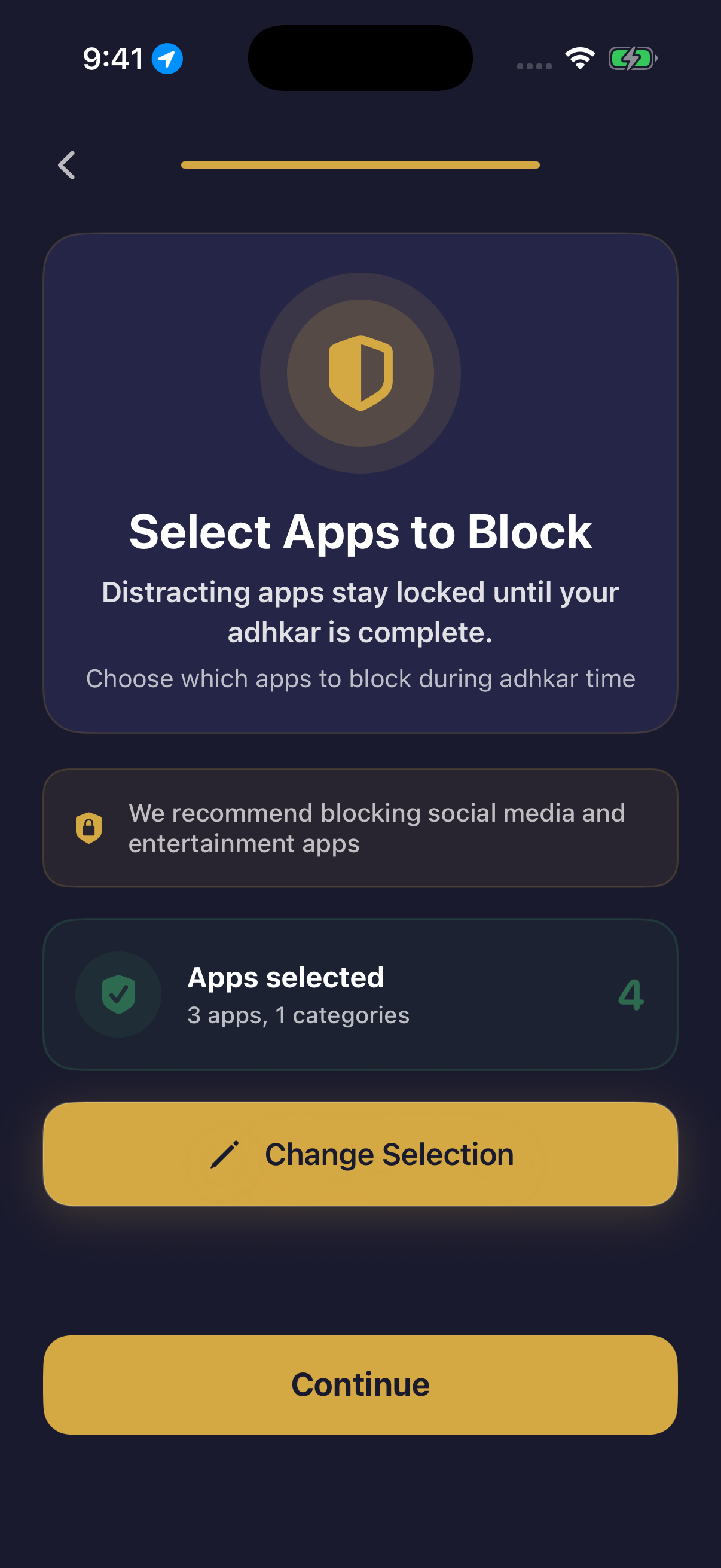
This is also why Hisn’s selected-app flow is user-controlled. You choose the apps or categories connected to the routine. The feature is not a hidden judgment about every app on the device, and it does not require uploading your selection to a Hisn account.
- Keep emergency and essential communication reachable.
- Leave authentication, transport, and work-critical tools available when needed.
- Treat mixed-purpose apps carefully instead of blocking a whole category by default.
- Prefer a shorter protected window when an app is useful later in the day.
04 · PRACTICAL GUIDE
Choose apps for a dhikr-first routine
In Hisn, the selected-app boundary belongs to an active morning or evening adhkar routine. That means the most relevant list is not every app you would ever like to use less. It is the set of apps that you want to place after that particular routine.
Open Hisn’s app-selection screen, review the available apps or categories, and confirm the small list you identified. Then review Focus Settings to make sure the intended morning or evening shield is active. Apple’s Screen Time permission must remain authorized for the shield to work.
During the active window, opening one of those selected apps shows Apple’s shield and a route back to Hisn. Complete the relevant routine, then make the next phone choice. This is the practical meaning of ‘Dhikr before distraction’: a selected distraction waits behind a visible boundary while the routine is active.
05 · PRACTICAL GUIDE
Know when to remove or add an app
Remove an app when the boundary repeatedly interrupts a necessary task, when the app was selected only because it belonged to a broad category, or when it is not actually part of the target transition. Removing noise from the list can make the remaining rule stronger and easier to trust.
Add an app only after you notice it taking the place of a currently selected distraction. If you block one feed and immediately move the same loop to another, the new app may belong in the next test. Add only that app; do not rebuild the whole list.
Keep the timing stable while changing the selection. Then you can ask a clean question during the next seven days: did this revised list protect the intended transition without blocking essential tasks? That answer is more useful than a vague sense that the phone felt better or worse.
06 · PRACTICAL GUIDE
Keep the choice private and reversible
An app-selection list can reveal daily patterns, so it should not become marketing data. Hisn does not require an account. Selected-app choices, routine progress, and prayer settings are designed to stay on the device. The Hisn website measures only allowlisted first-party App Store redirect requests; it does not need the names of the apps you selected.
Your list should also remain reversible. You can reduce it, change it, or stop using the boundary when it no longer matches the job. A user-controlled focus tool should make the current rule visible rather than pretending that one configuration is correct forever.
Start with a list you can explain in one sentence: ‘These are the apps that interrupt my morning or evening transition.’ If the selection cannot pass that test, make it smaller. Clarity is more valuable than the number of blocked icons.
CLEAR ANSWERS
Questions about the routine
How many apps should I block first?
Start with two to four apps connected to one repeatable transition. A small list is easier to test and less likely to interrupt essential phone tasks.
Should I block a whole app category?
Only when the category closely matches the behavior you want to change. Choose individual apps when different apps in the category serve different purposes.
Can I change the apps selected in Hisn?
Yes. The selection is user-controlled. Change one element at a time so you can understand whether the revised list works better.
Does Hisn store my selected-app list in an account?
No Hisn account is required. Selected-app choices are designed to stay on your device.
This guide describes Hisn’s current iPhone and iPad focus flow without promising a guaranteed behavioral, medical, or religious outcome. Current App Store availability and device compatibility are shown by Apple.