
REAL FOCUS SHIELD
What Happens When Hisn Blocks a Selected App?
See the real Hisn focus-shield flow: a selected app waits during active adhkar, the shield points back to Hisn, and access returns after completion.

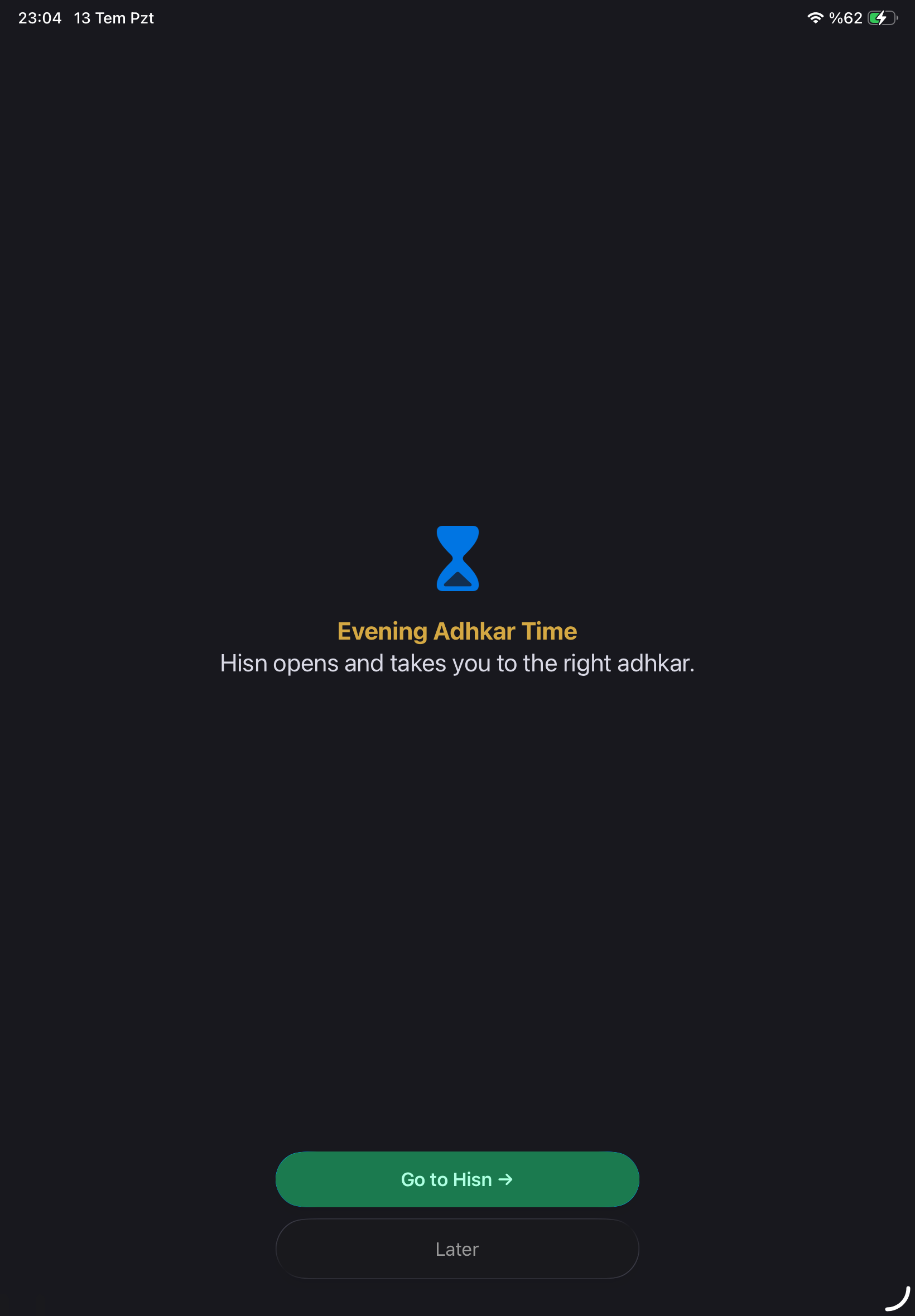
The screen is the proof. Open a selected app during an active routine and Apple’s Screen Time shield appears in front of it with a clear route back to Hisn.
01 · PRACTICAL GUIDE
The real sequence starts when you open a selected app
Hisn’s focus flow becomes visible at the moment you try to open an app you selected. If the relevant morning or evening adhkar routine is active, Apple’s Screen Time shield appears in front of that app. The shield shown above is a real iPadOS screen from the working Hisn app, not a designed mockup.
The screen states that the app is blocked until the routine is complete and gives you a ‘Go to Hisn’ action. That button returns you to the app where the active routine is waiting. You complete the routine there, then return to the phone choice with the selected apps available again.
Nothing about the flow requires the blocked app to contain Hisn content or to know which routine you are following. Apple’s system shield creates the boundary at the selected app, while Hisn manages the morning or evening routine that defines when the boundary ends.
- 1You open an app you selected
The app must be part of your Hisn selection, and the related morning or evening routine must be active.
- 2Apple’s Screen Time shield appears
The selected app waits behind a system-level shield instead of opening directly into its usual content.
- 3You return to Hisn
The shield provides a clear action back to Hisn so you do not have to search through the phone for the active routine.
- 4You complete the routine
After completion, the selected apps become available and the next decision remains yours.
02 · PRACTICAL GUIDE
What the focus shield proves—and what it does not
The real shield proves that Hisn can place a visible Apple Screen Time boundary in front of user-selected apps during the active routine. It also proves that the screen can point back to Hisn, giving the interruption a specific next step rather than leaving you at a dead end.
It does not prove an unbreakable lock, a guaranteed behavior change, or permanent control of the device. System permissions can be changed by the device owner, schedules can be adjusted, and the selected-app list remains user-controlled. Hisn deliberately describes the feature as a pause or shield instead of promising that bypass is impossible.
That distinction matters when choosing a focus app. A truthful product should show what happens on the device and describe the limits in the same place. The value here is not absolute enforcement; it is a timely interruption connected to a clear morning or evening routine.
Choose what waits, complete the routine, then return with intention.
03 · PRACTICAL GUIDE
What must be set before the shield can appear
First, Hisn needs Apple’s Screen Time authorization. iOS controls this permission, and the device owner can review or change it in system settings. Without the authorization, Hisn cannot place the expected shield in front of selected apps.
Second, you choose which apps or categories should wait. Hisn does not block every app by default. Keep the selection focused on the apps connected to the transition you want to protect, and leave necessary tools outside the list when you may need them.
Third, the morning or evening focus setting must be active. The focus settings screen shows the current selected-app count and whether each routine shield is enabled. Review that screen before testing so that the result is tied to a configuration you understand.
- Screen Time authorization is active on the device.
- At least one app or category has been selected by you.
- The intended morning or evening shield is enabled.
- The corresponding routine is currently active.
04 · PRACTICAL GUIDE
If the selected app opens without the shield
Start with the simplest explanation: confirm that the app is still selected. A category change, reinstall, or selection edit can leave a particular app outside the current list. Return to Hisn’s app-selection screen and check the configuration without adding unrelated apps.
Next, confirm that the correct routine is active. A morning shield will not explain an evening test, and an enabled setting does not mean every hour of the day is protected. Use the focus settings and the current routine state together.
Finally, review Screen Time authorization in iOS and return to Hisn. Test again with one selected app. Changing one condition at a time helps you find the missing link without erasing a setup that was otherwise correct.
05 · PRACTICAL GUIDE
What happens after you choose ‘Go to Hisn’
The return action opens Hisn so the relevant routine can become the next task. The app’s reader keeps the routine and its reading controls together, including Arabic, transliteration, translation, and counting controls. This page does not reproduce or invent any religious text; the verified in-app routine is the source of that experience.
When you finish, Hisn removes the active selected-app boundary for that flow. You can then return to the previously selected app, choose another task, or leave the phone. The product does not force a particular decision after completion.
This closing step is important. A useful interruption should not merely create friction; it should connect the distracting moment to the intended routine and then end clearly. You know why the shield appeared, what action resolves it, and when the choice returns to you.
06 · PRACTICAL GUIDE
The focus choice stays under your control
Hisn does not require an account. Selected-app choices, routine progress, and prayer settings are designed to stay on your device. The app does not need a social profile or public streak to place the focus boundary around the routine.
The website’s App Store links use a first-party redirect so anonymous, allowlisted click requests can be counted. That measurement does not reveal which apps you selected, which routine you completed, or any personal or religious content. A click also is not proof of an installation, trial, subscription, or revenue.
If you want to test the real flow, begin with one nonessential app and one routine window. Confirm the shield yourself, complete the path, and decide whether that interruption matches the phone transition you want. The screen should earn your trust through visible behavior, not through a promise of guaranteed results.
CLEAR ANSWERS
Questions about the routine
Is the Hisn focus shield a real iPhone or iPad screen?
Yes. The shield shown in this guide is a real iPadOS Screen Time shield captured from the working Hisn app, not fabricated iOS interface artwork.
What does the ‘Go to Hisn’ button do?
It returns you to Hisn so you can continue the active morning or evening adhkar routine connected to the selected-app boundary.
Are selected apps blocked forever?
No. They wait while the relevant routine is active and become available after completion. The device owner also remains in control of permissions and settings.
Does the website know which apps I selected?
No. The website does not collect your selected-app list. Hisn’s selected-app choices are designed to stay on your device.
This guide describes Hisn’s current iPhone and iPad focus flow without promising a guaranteed behavioral, medical, or religious outcome. Current App Store availability and device compatibility are shown by Apple.